Hexagon Measurement SystemsNo matter what Hexagon measurement equipment or software you use, we want to hear your ideas and suggestions on how we can improve.
Thanks for your assistance in helping us shape the future. |
|

 Kindly share in video how to use leap frog alignment when using Romer Arm portable machine

Making network licensing available
It would be nice to use the software on multiple pcs and "check out" license as needed. I do this with many other types of software and it works great. I'm shocked Hexagon does not utilize this. The license can be parked on my server and be accessed by multiple PC's only allowing the paid number of licenses to login. I'm being told this isn't available for PC DMIS from Hexagon.

Build a color map of a measured part in comparison with another measured part pattern but not with CAD
It would be great to be able to build a color map of a measured part based on its comparison with another patter-part and no with its CAD.
This option would be very usefull, for example, in the case where we have 2 parts: at first sight both of the parts have the same dimensions because the results of the measurements of both parts with caliper are similar and both parts are on tolerance with the CAD/drawing, but only one of them could be assembled. So, it would have sense that the difference between them must be on the shape, and the mentioned option would be the best chance to be able to see it.

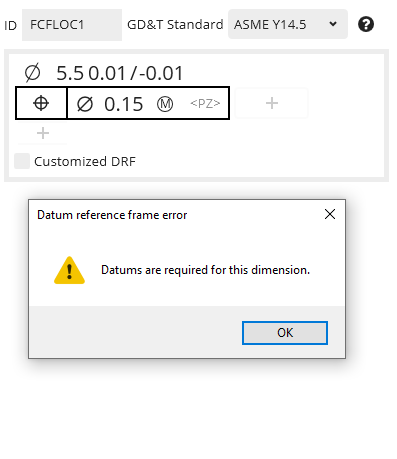
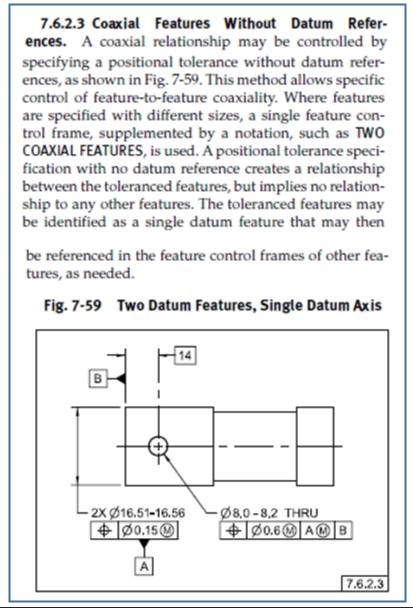
Position to No Datums
ASME Y14.5-2009 7.6.2.3 Coaxial Features Without Datum References
This is an ability that I would like to see in PC-DMIS Xact-Measure.
If the call out is per the spec then PC-DMIS should abide by the standard.
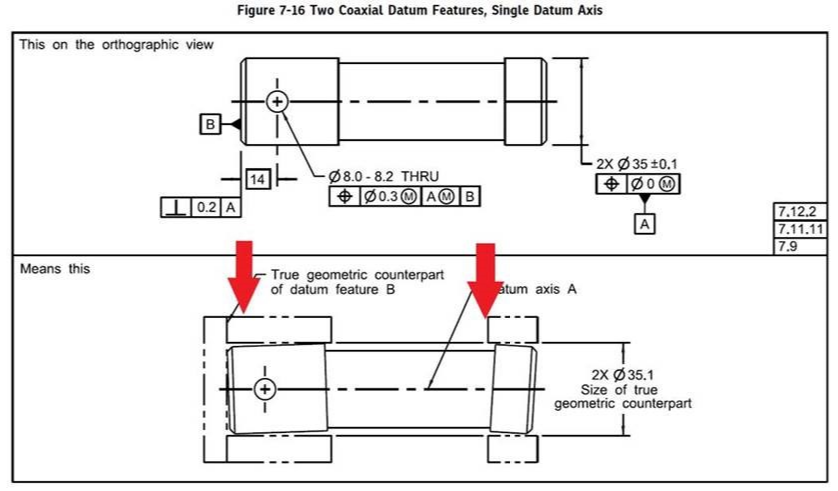

concentricity and coaxiality - References "A-B"
Why can't I use the "A-B" cover for concentricity and coaxiality?
References are circles and cylinders.

Searchable features in ClearanceCube Definition Status Tab
I'd like to be able to search for a given feature in the ClearanceCube Definition Status Tab. Scrolling thru a mile long list is not fun. In an ideal world, if the Clearance Cube Definition Status tab was open clicking on a feature label in the graphics window would take you to the feature in the Status tab.

Calibrate Tips and Probes for Program
Add to the calibrate tips feature to be able to calibrate multiple probes for a program as well.

Default setting of the calculation type of the elements
Currently, an elemente open always with the setting of the last use.
But since most of the time is the default setting ASME or ISO 1101, it would be an advantage if this be can adjusted in advance.
I would suggest here to insert an pullup meneu in the menu „NEW“ where the default setting of the elements can be preset.

Add a key in the quick Measurement Strategy Widget where you can difine samble hits .
Add a key in the quick Measurement Strategy Widget where you can difine samble hits ,for now it can't change the sample hits in PC-DMIS R2 with just 0 spacer. Or allow the programer change the hits position manually with the intuitive path line displayed.

PC-DMIS Community
It could be grat to create a community for PC DMIS users where anyone can share his own problems, questions, examples, passion, experience...
This could help users in every day small problems and increase abilities of anyone that uses this software, in both big or small working reality.
The community can't take the place of the assistance service, but it may be helpful too.
Customer support service by UserEcho